Set up priority alert for users and workspaces
list-menuFeedback?
Priority alert allows you to set up a unique ringtone based on predefined criteria. This is helpful, when the user wants to be quickly notified that a specific phone number is calling.

Before you begin

  • To set up this feature for workspaces, ensure that workspaces have a professional license assigned. To find out more about the features that are available with workspace licenses, see Features available by license type for Webex Calling.

  • RoomOS devices don't support Priority alert.

1

Sign in to Control Hub.

2

Go to the respective path.

  • For Users: Go to Management > Users. Then, select a user.

  • For Workspaces: Go to Management > Workspaces. Then, select a workspace.

3

Click the Calling tab.

4

Go to the Call handling section, select Priority Alert, and turn on the toggle.

5

Select a predefined schedule from the drop-down list.

If you don’t see a schedule that you want to use for this setting, you can create a new schedule from the Schedules page. For more information, see Create Schedules.

6

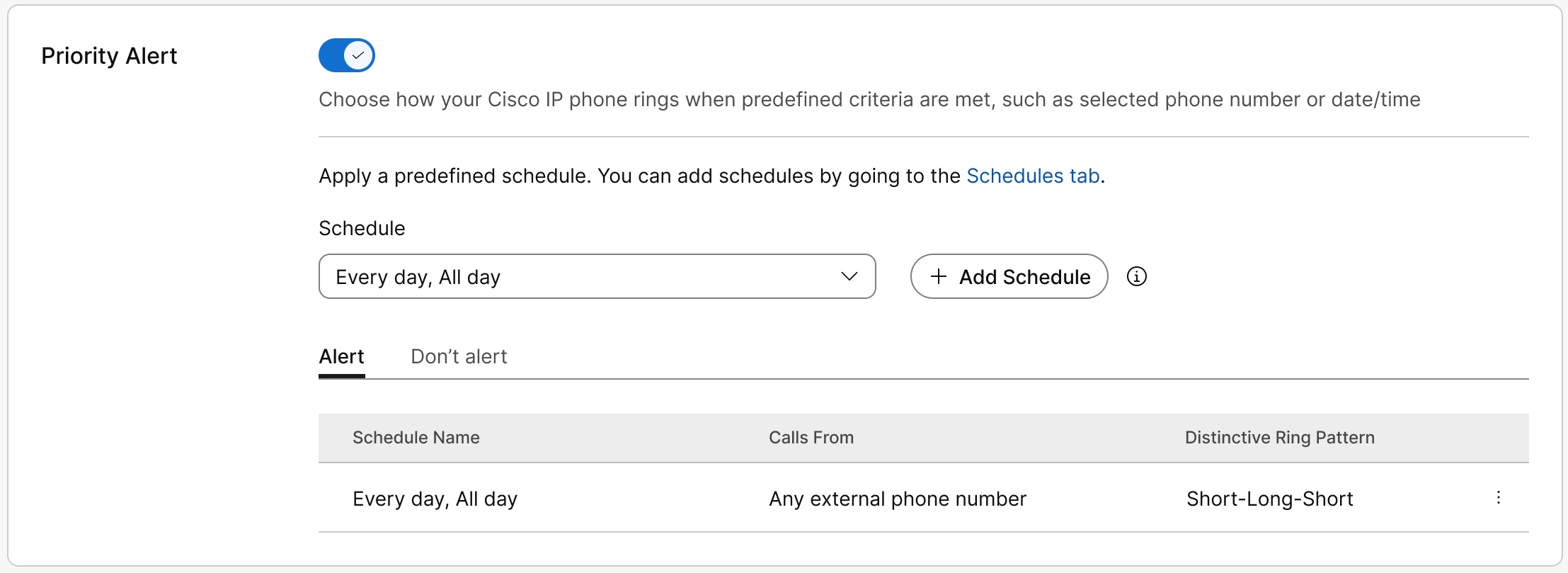
Click Add Schedule to set the following parameters:

  • Schedule—Choose when the priority alert rule should be active. The alert applies only to calls that match the selected criteria during the scheduled days and times.

    If you're a location administrator, only the schedules pertaining to your assigned locations appear.

  • Calls from—Choose which calls should use the priority alert.

    • Any external phone number—Applies the alert to calls from any external phone numbers.

    • Any internal phone number—Applies the alert to calls from any internal phone numbers.

    • Select phone numbers—Applies the alert to specific phone numbers. You can choose Any Private Numbers, Any Unavailable Numbers, or enter a phone number. Click Add number to add more phone numbers.

  • Distinctive ring pattern—Choose the ringing pattern that the user's supported devices and Webex App (desktop, mobile, and tablet) use when an incoming call matches the configured criteria. This helps users identify important calls by sound.

  • Alert or Don't alert—Choose whether user's supported devices and Webex App should play the priority alert ringtone when an incoming call matches the configured criteria. Select Alert to play the ringtone, or Don’t alert to suppress it.

7

Click Save to save your priority alert parameters.

The schedule appears in the Alert or Don’t alert table. You can edit or delete the schedule from the table as needed.

Priority Alert page showing the toggle enabled with a schedule created under Alert

Don't alert takes precedence over Alert.

The system checks the rules from top to bottom and applies the first rule that matches the call. Rules are listed in the table from oldest to newest, so the rule higher in the list has higher priority. To lower a rule’s priority, delete it and add it again. The rule moves to the bottom of the list as the newest rule.

8

Click Save.

User can also set up priority alerts in User Hub. For more information, see Configure priority alert. Any changes the user makes to these settings appear in both the User Hub and Control Hub.

Was this article helpful?